Appearance
Save or load your Workspaces
To ensure your progress is not lost, we recommend saving your project regularly. This way, if something unexpected occurs you won't have to start over. Instead, you can pick up right where you left off, making your workflow smoother and more efficient.
💡 Autosave
Omics Studio has Autosave , meaning Omics Studio automatically saves your project every 3 minutes. If you want to load your latest Autosave, make sure to follow the steps for how to load your workspace.
How to save your Workspace manually
💡 TIP
When saving, choose a meaningful name that will make it easy to identify your work later.
Save to a new file
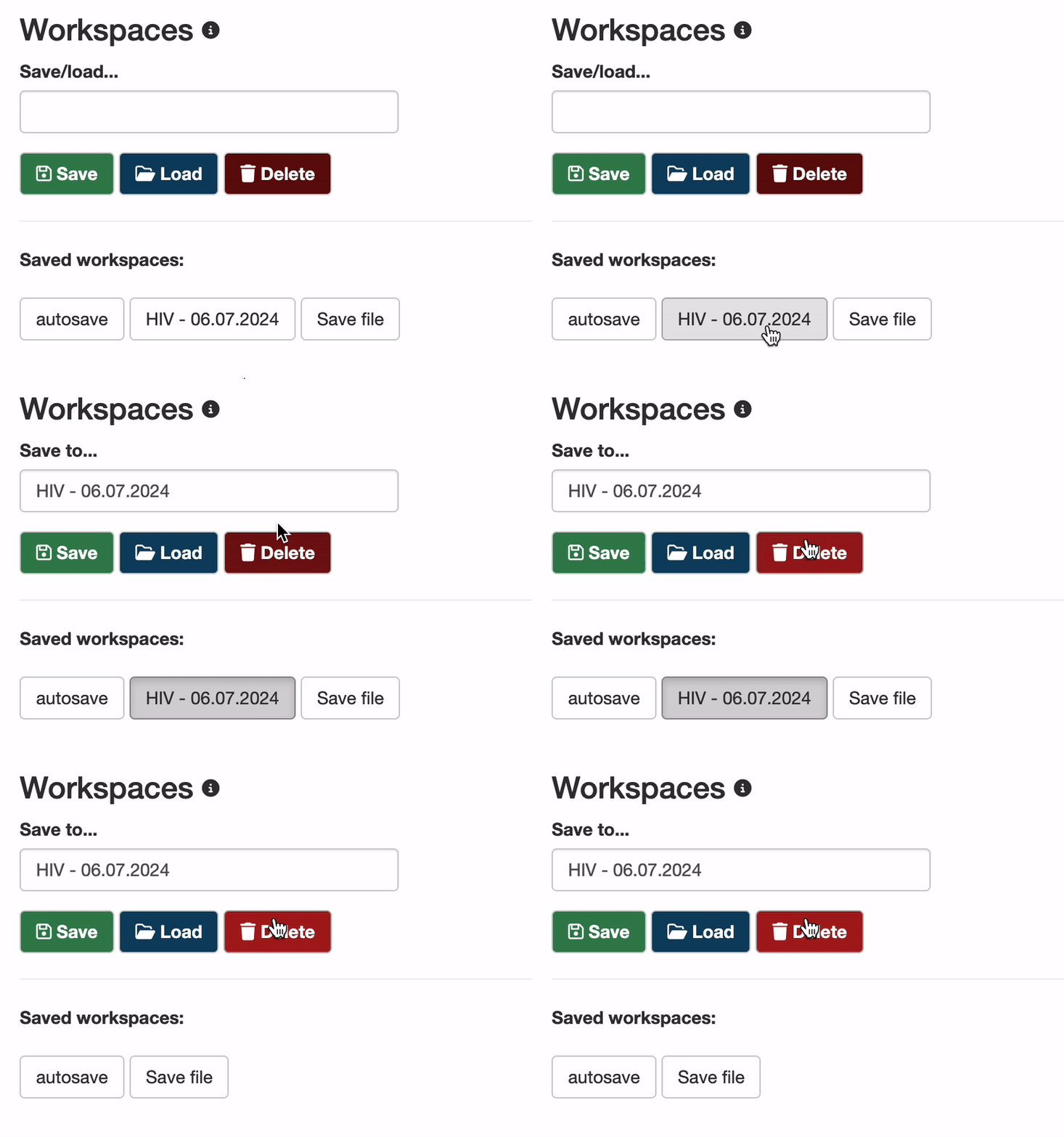
- Navigate to the
Data Loadingpage. - In the
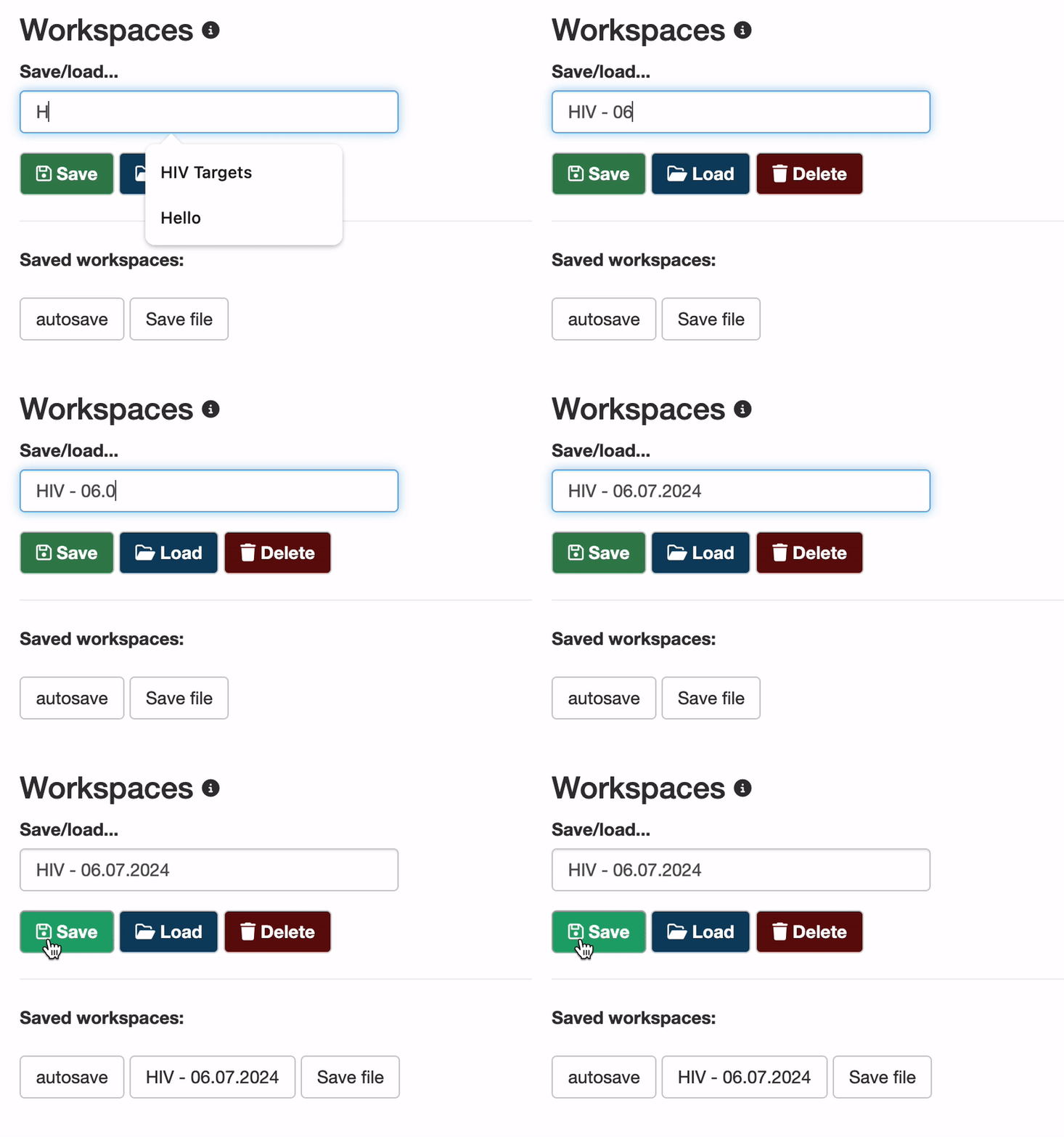
Workspacestype a unique file name for the new save file, e.g. "HIV — 06.07.2024". - Once named, click 💾 Save to create a new save file.
- You will find your newly saved file under Saved workspaces.
Save to existing file
- Navigate to the
Data Loadingpage. - In the
Workspaces, go to Saved workspaces. - Click on the save file you want to save, and click 💾 Save.
Quick save

You can access the save function at any time from the menu bar in the top right corner. When saving, ensure you select the correct save file. For example, if you are working with "HIV - 06.07.2024", make sure this file is displayed. If a different file is shown, go to Data loading to load the correct save file - Learn how.
How to load your workspace
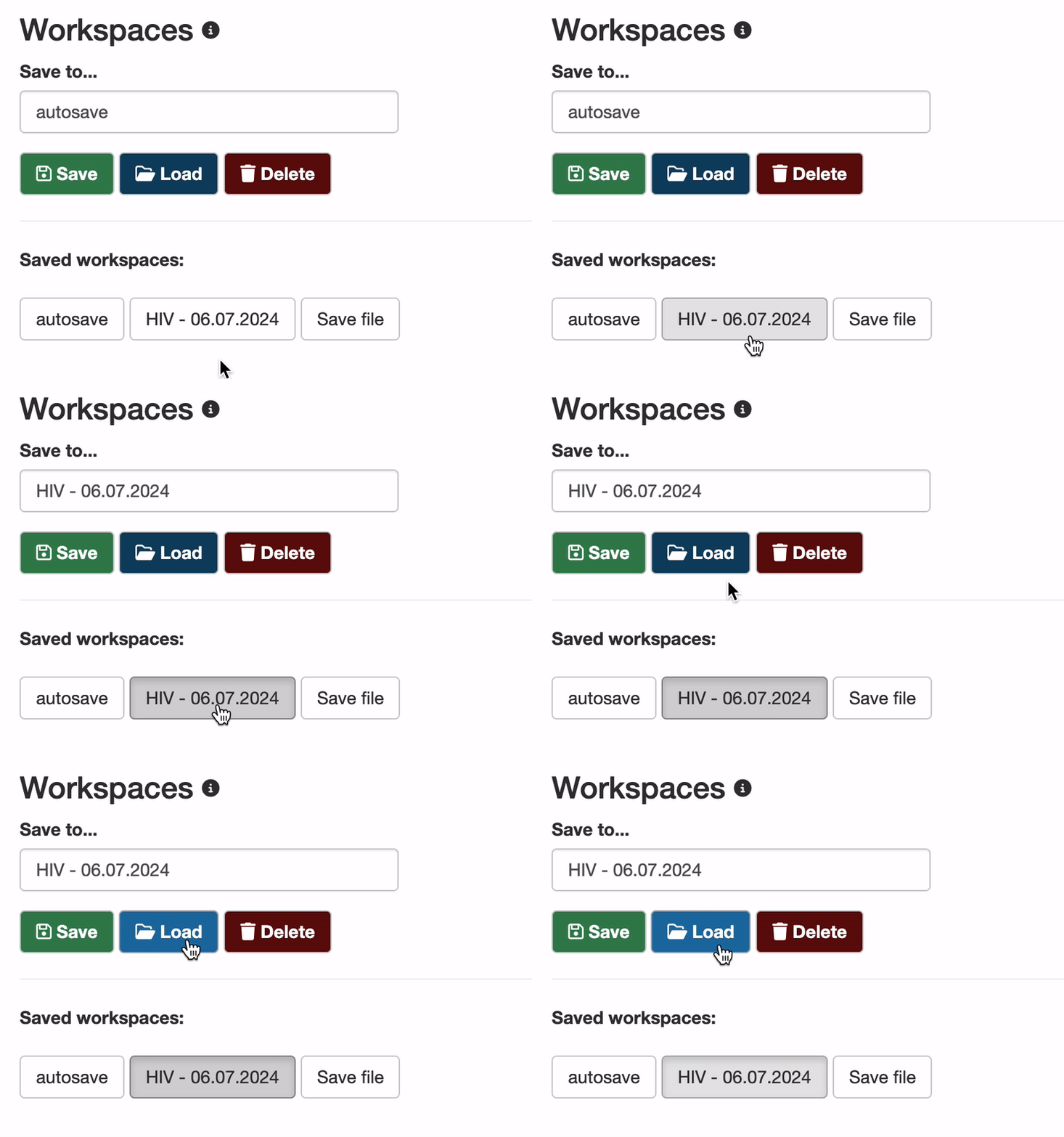
- Navigate to the
Data Loadingpage. - In
Workspacesgo to Saved workspaces. - Click on the save file you want to load, and click 📂 Load
How to delete your workspace
⚠️ Important
Be aware that once Workspaces are deleted, they cannot be restored.
- Navigate to the
Data loadingpage. - In the
Save to your workspace, go to Saved workspaces. - Click on the save file you want to delete, and click 🗑️ Delete.