
Appearance
Introduction to My lists
This section is a guide on managing your list(s) within Omics Studio. The My lists is a dynamic tool designed to help you curate and manage lists of nodes that are of particular interest to your research. Whether you're adding new entries, editing existing lists, or seeking an organized overview of your selected IDs, this guide will walk you through the functionalities and benefits of the list feature.
Creating and managing your lists
First, make sure to be logged in to Omics Studio and go to the tab My list.
Creating a new List
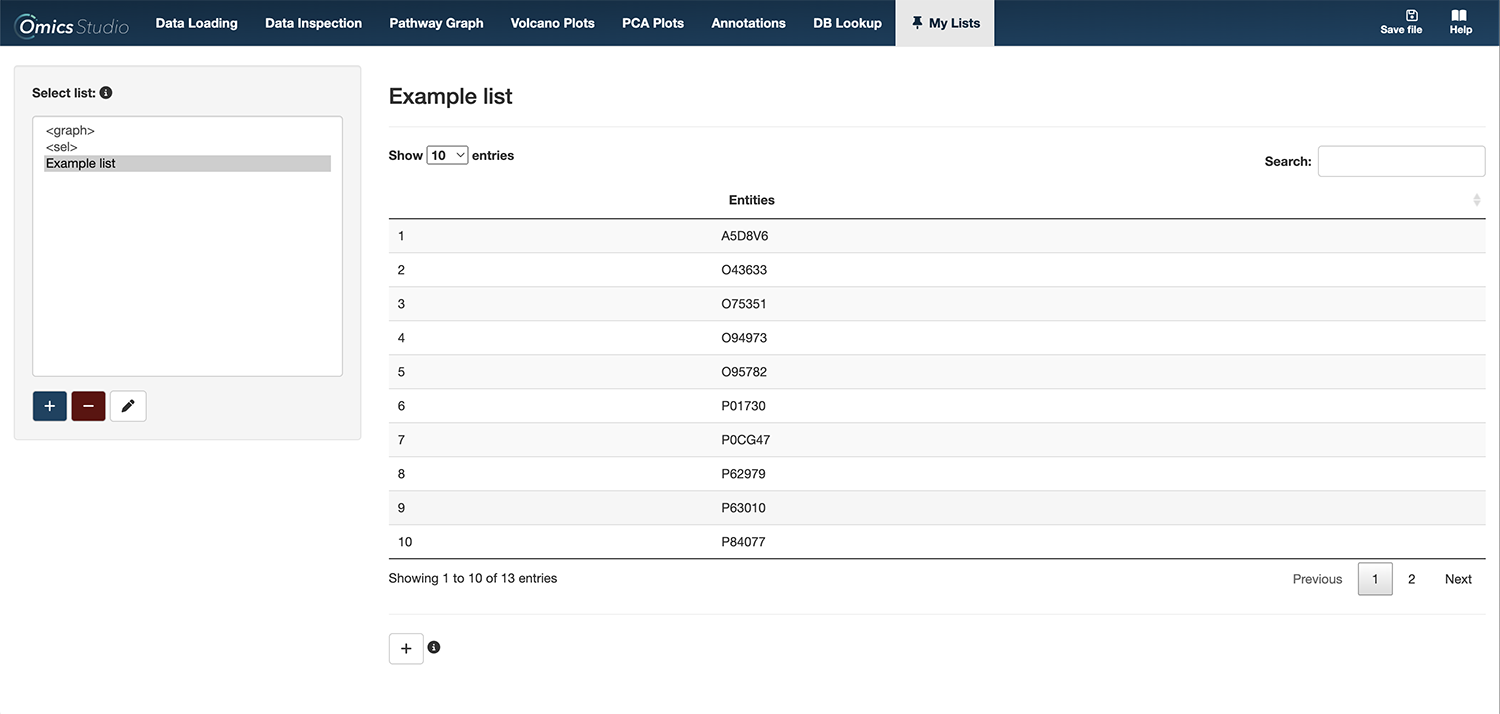
- Add new: To start a new List, simply click on the "+" option. This creates a new list (pre-named to "New list"). To change the name of your new list, select your newly added list and follow the next step.
Editing an Existing List
- Edit List Name: If you need to rename an existing lists, select the list and click the edit "🖊️" icon. Update the name as required to better reflect the content or research focus.
Deleting Lists
- Delete Lists: Should you need to remove a list, you can easily delete it by selecting the list and clicking the delete "-" option. Please note, deletion is permanent, so ensure the list is no longer needed before proceeding.

Overview of your selected list
Upon selecting a list, an overview of your nodes will be presented, provided that nodes have already been added to the list. This view displays all included IDs, such as protein identifiers, offering an overview of the contents of your selected list. This overview allows you to review which nodes are currently being analyzed, ensuring you have a clear understanding of the components of your research focus.
How to add nodes to your List
You have two ways to add items to your list:
Select with 📌: In the
Data inspection,Pathway graph,Volcano plots, andAnnotations, you have the option to directly add selected items to your lists using the 📌 button. Simply select the items of interest and choose the appropriate list from the dropdown menu to save them.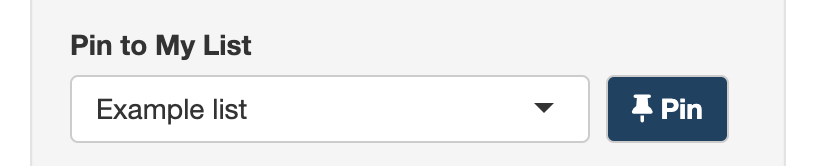
Manually adding IDs: In the
My list, you can manually add nodes by clicking the [+] button. Whether it's a protein's Uniprot ID (e.g., P04578) or any other relevant identifier, this method allows you to tailor your custom list(s) to include specific nodes discovered through your research or suggested in scientific literature.
Removing nodes from your list(s)
⚠️ Please note that the current version of Omics Studio does not support the removal of nodes once they have been added to your lists.
Deletion of individual nodes from an existing list is not supported in the current version of Omics Studio. Should you need to modify the composition of your list, we recommend creating a new list that includes only the desired nodes.
Applications and benefits of using the lists
My List in Omics Studio is a powerful tool that transforms how you approach and conduct your research. Here’s how leveraging the lists can significantly enhance your research capabilities:
AnnotationsUse your list(s) for detailed annotations, enriching your understanding of each node's biological context. This process can reveal connections between nodes, such as genes or proteins, and their roles in various biological processes or disease mechanisms. Annotations can be vital in identifying critical pathways and potential targets for further investigation.Database lookupWith list(s), you can effortlessly perform database lookups to gather extensive information on the nodes of interest. This includes insights into node properties, their involvement in diseases, and other relevant literature.- Organized research: Maintaining your nodes in organized lists significantly simplifies navigating complex datasets. This organization not only aids in managing your current research focus but also in revisiting and reanalyzing data as new hypotheses or research directions emerge.
- Focused analysis: The lists allows you to refine your analysis to nodes that are of utmost importance to your research questions. By focusing on a curated list of nodes, you can more efficiently allocate your resources and time to uncovering insights that are most relevant and impactful.
In essence, the My lists is designed to streamline your workflow, enhance the depth of your analysis, and facilitate a more organized and informed research process.